Guides·
Image sizes for a SaaS launch: OG, X, LinkedIn, Product Hunt and email (2026)
Every image size a product launch needs in one table, from the 1200 × 630 link preview to the 1270 × 760 Product Hunt gallery, and how to make one cover fit all of them.
Loris·5 min
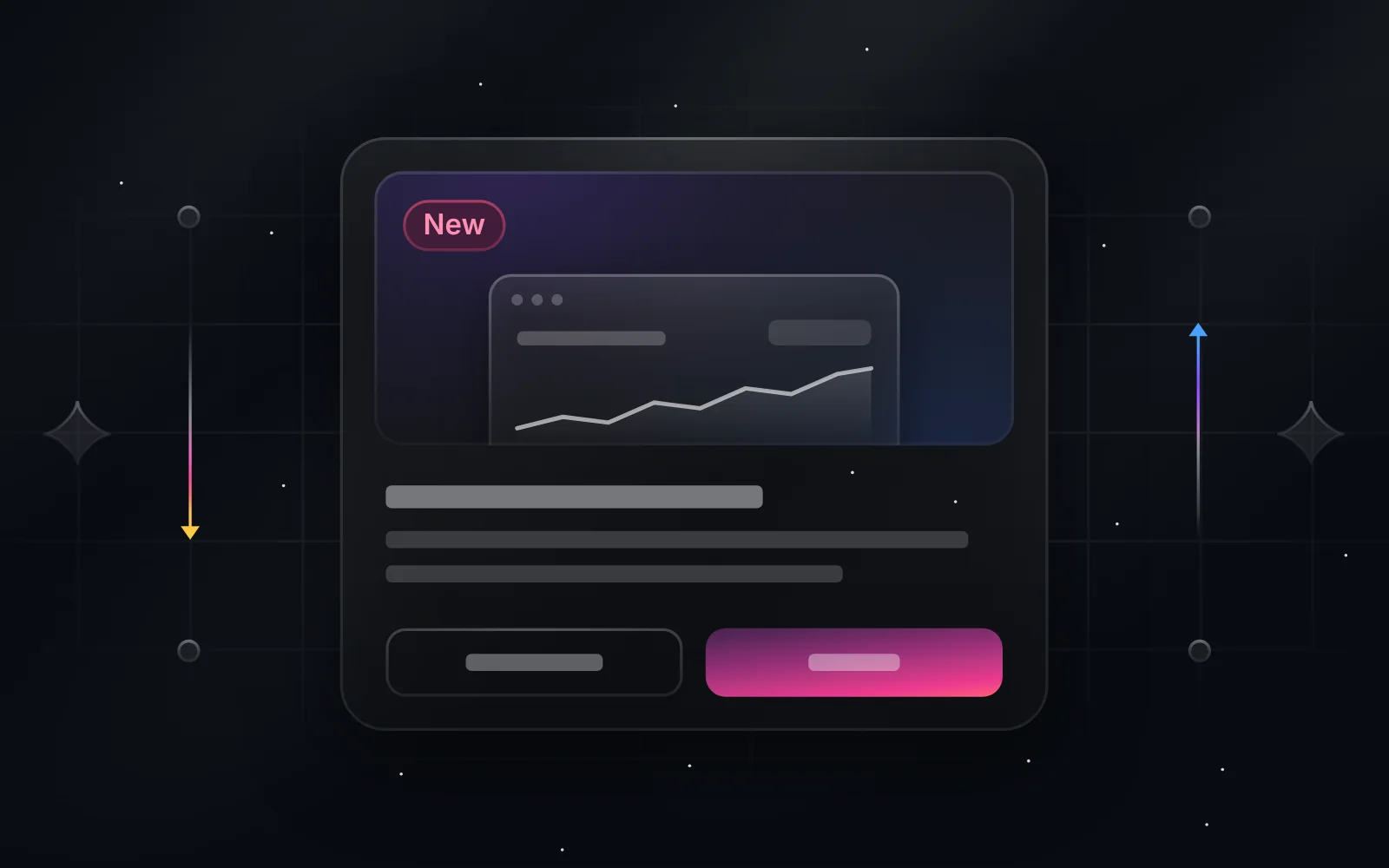
Short answer: make the link preview 1200 × 630 px, the Product Hunt gallery 1270 × 760, X posts 1920 × 1080 (16:9), LinkedIn link posts 1200 × 627, Instagram 1080 × 1080, and email images 1200 px wide shown at 600. Start from one wide cover with a plain background around the subject, and every one of these is a crop, not a redesign.
A launch needs the same picture six times: on the blog post, in the link preview, on X, on LinkedIn, on Product Hunt and in the newsletter. Each place wants a different shape. If the first version is designed edge to edge, every other size becomes a new design.
This guide has the sizes in one table, then a worked example: one Duskcover illustration, placed on every size.
The sizes, in one table
| Where | Size (px) | Ratio | Notes |
|---|---|---|---|
| Link preview (Open Graph), Slack, iMessage | 1200 × 630 | 1.91:1 | Meta's minimum for a large preview is 600 × 315 |
| LinkedIn post with a link | 1200 × 627 | 1.91:1 | The same file as Open Graph works |
| X post, landscape | 1920 × 1080 | 16:9 | 1440 × 1800 (4:5) for a portrait post |
| Product Hunt gallery | 1270 × 760 | 1.67:1 | Product Hunt's own recommendation; add at least two |
| Product Hunt thumbnail | 240 × 240 | 1:1 | Usually the logo, not the cover |
| Instagram feed | 1080 × 1080 or 1080 × 1440 | 1:1 or 3:4 | Story: 1080 × 1920 |
| Email (newsletter, changelog digest) | 1200 wide | any | Most email clients show it 600 px wide |
| Blog cover | 1600 × 900 or 1600 × 1000 | 16:9 or 16:10 | Whatever your blog's card uses |
Sources: Product Hunt help centre for the gallery size; the social sizes are from SaaSCity's size list (checked October 2026). Platforms change these without notice, so check the one that matters most before a big launch.
One cover, every size
The trick is to design the cover with a calm background around the subject. Then each size only changes how much background you see.
Duskcover's illustrations are built this way. The scene is 668 × 304, the background (light rays, a faint grid, a few specks of dust) runs to every edge, and the subject sits in the middle with room on all sides. Here's one scene, Feature Announcement (329), on every size from the table:
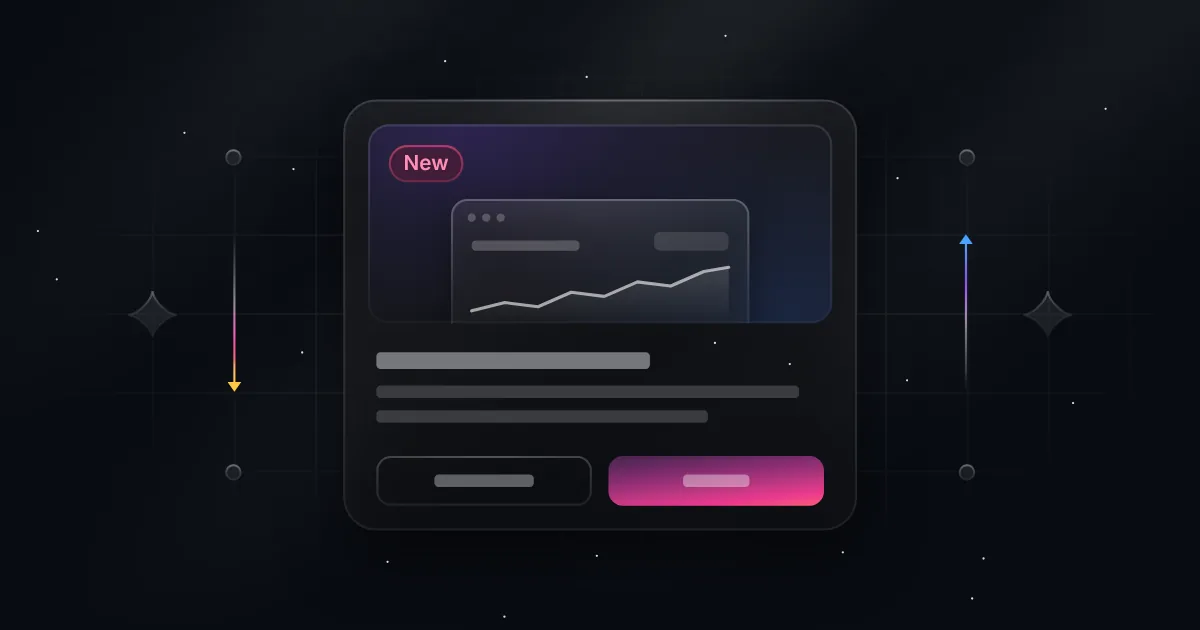
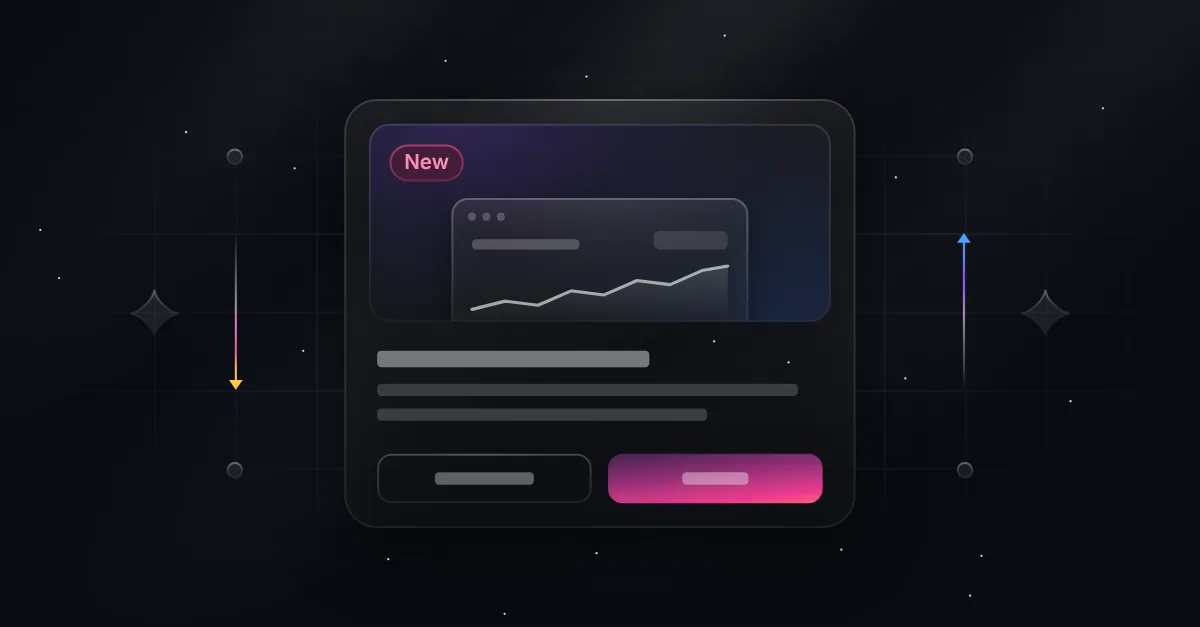
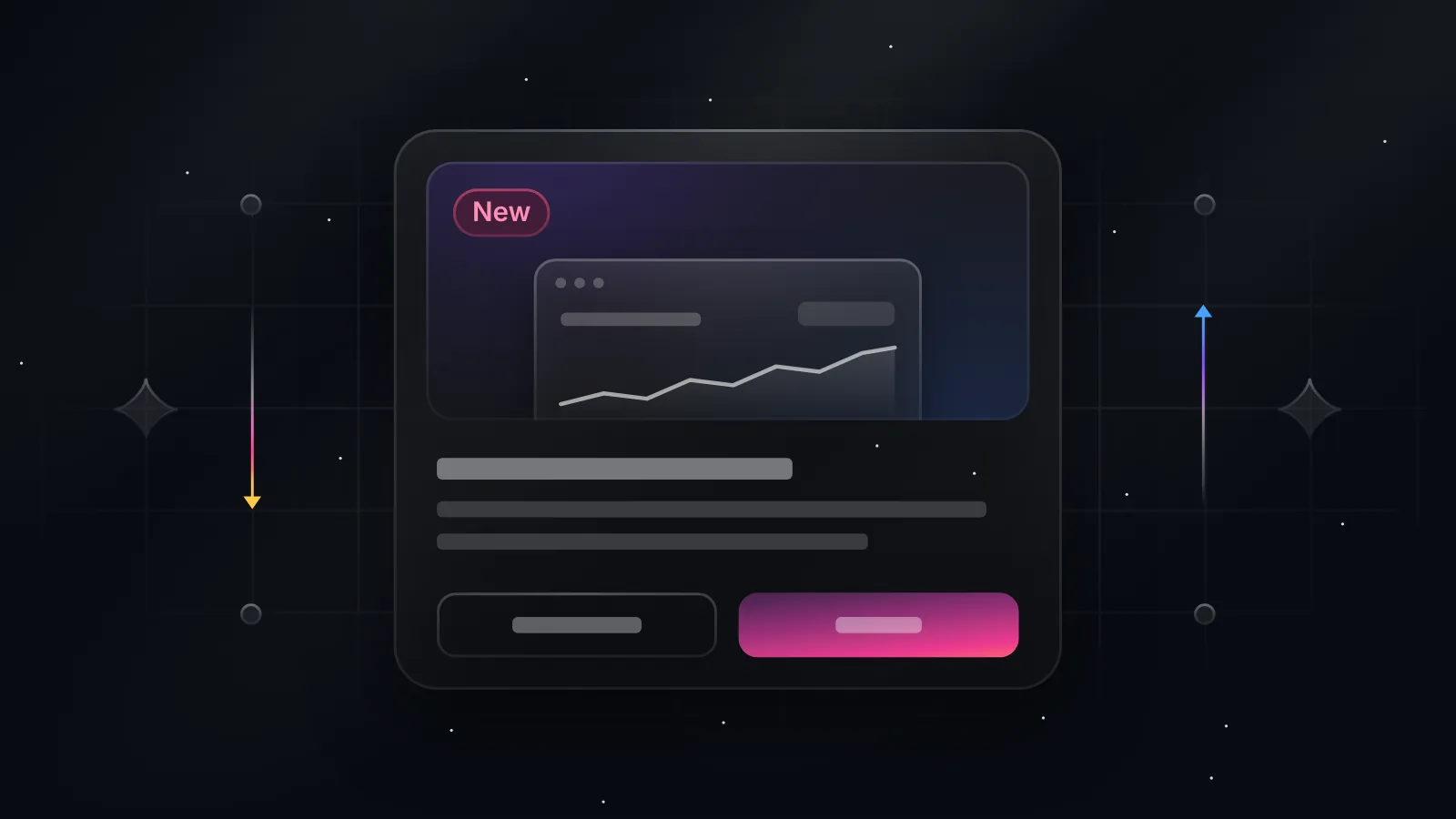
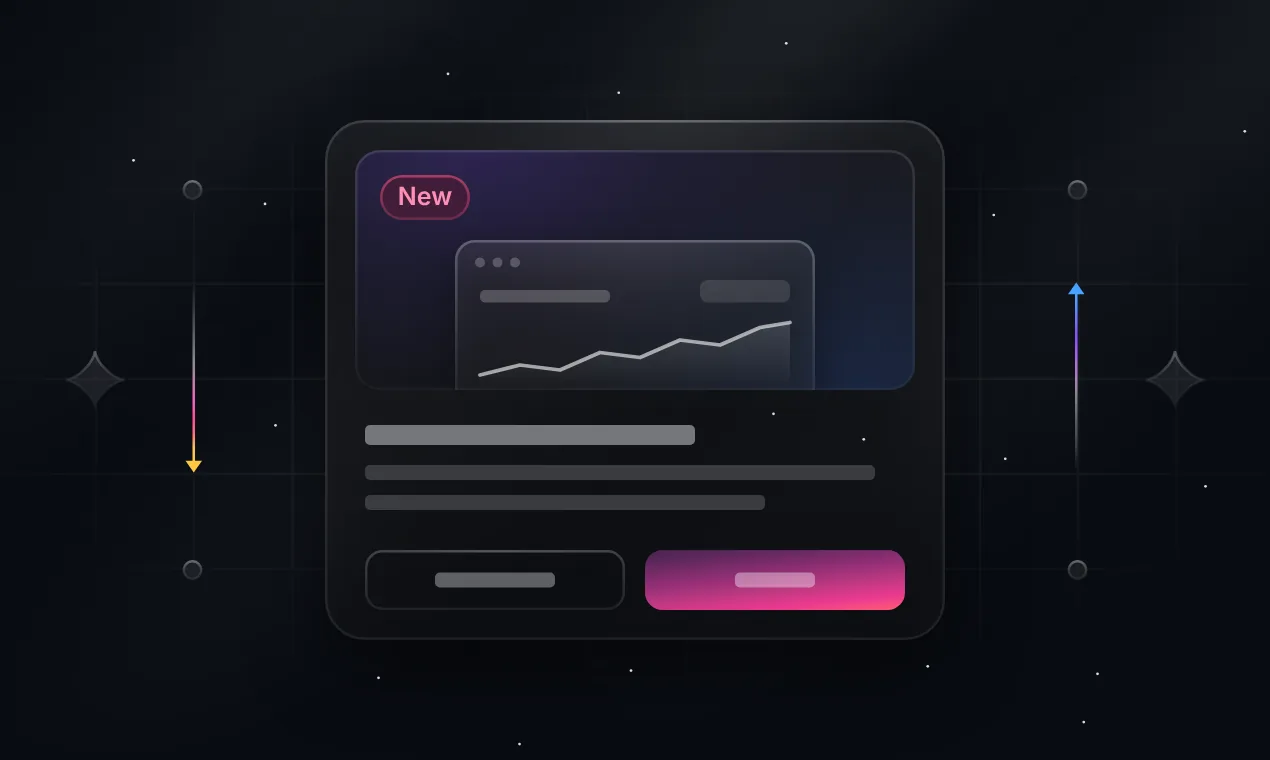
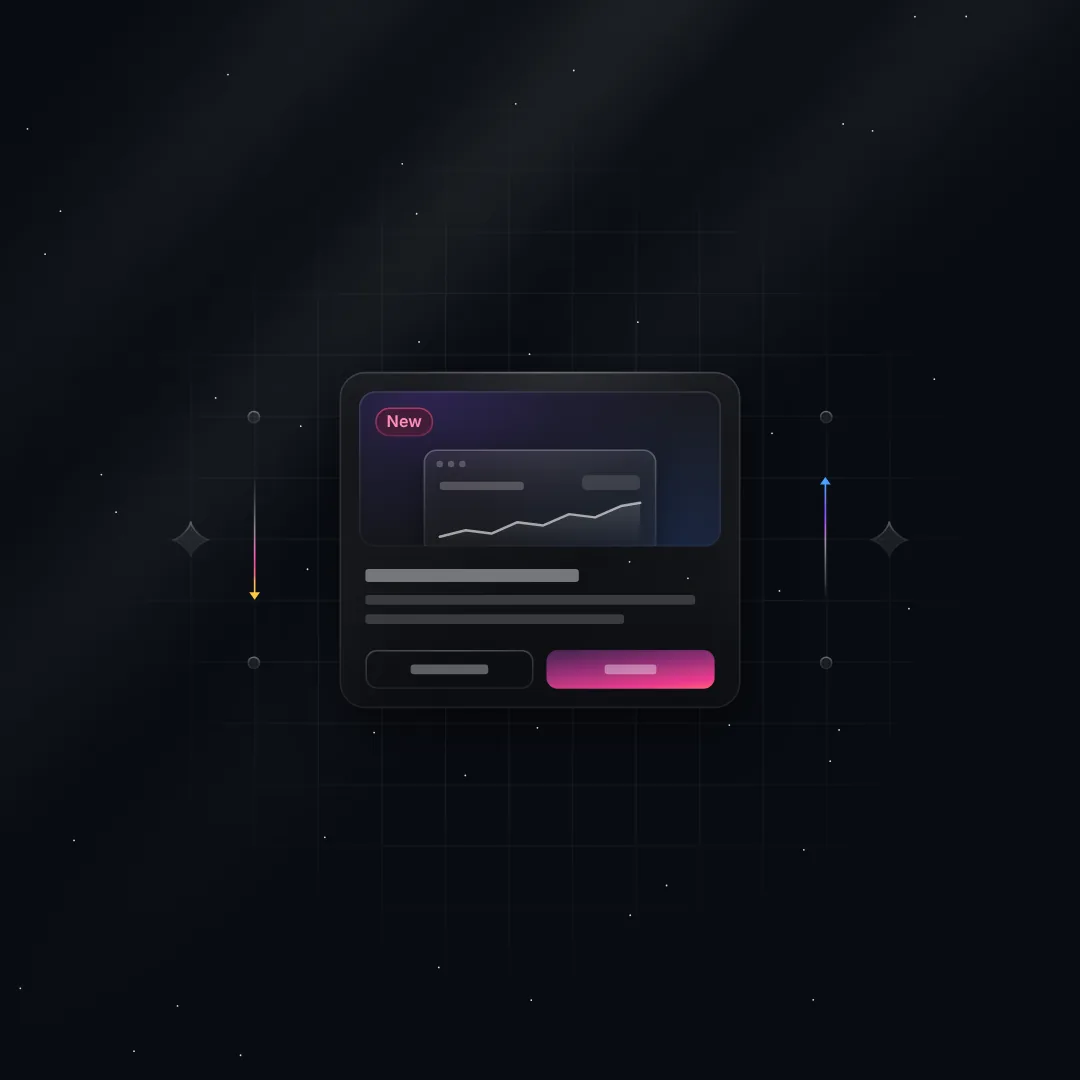
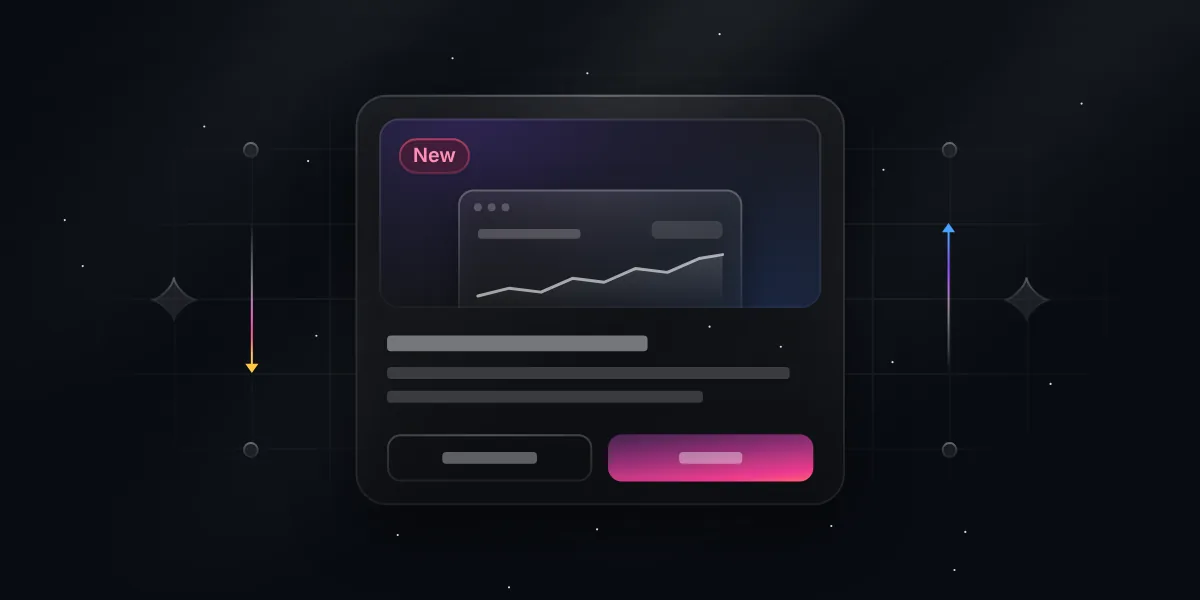
How these were made: the scene is exported once as SVG, then placed on a canvas of each size filled with the scene's background colour (#090C12) and scaled to fill the height. For the square, Duskcover's Square frame extends the background for you. Because the SVG is vector, every size is sharp.
Where to keep text
Every platform crops or overlays something:
- Link previews often show the title under the image, and some apps crop the image to a near-square on small screens. Keep anything important in the middle 60%.
- X shows the image in the feed at 16:9 and may crop a 4:5 one. Put the headline in the post, not only in the image.
- Product Hunt shows the first gallery image largest. Make it the clearest one, not the busiest.
- Email is read on phones at 600 px or less. Text in the image needs to be at least about 24 px tall at full size to stay readable.
A Duskcover scene keeps its text short on purpose: a tag ("New"), a version, a number. The headline belongs in your post or your HTML, where it can be read by screen readers and search engines.
Exporting from Duskcover
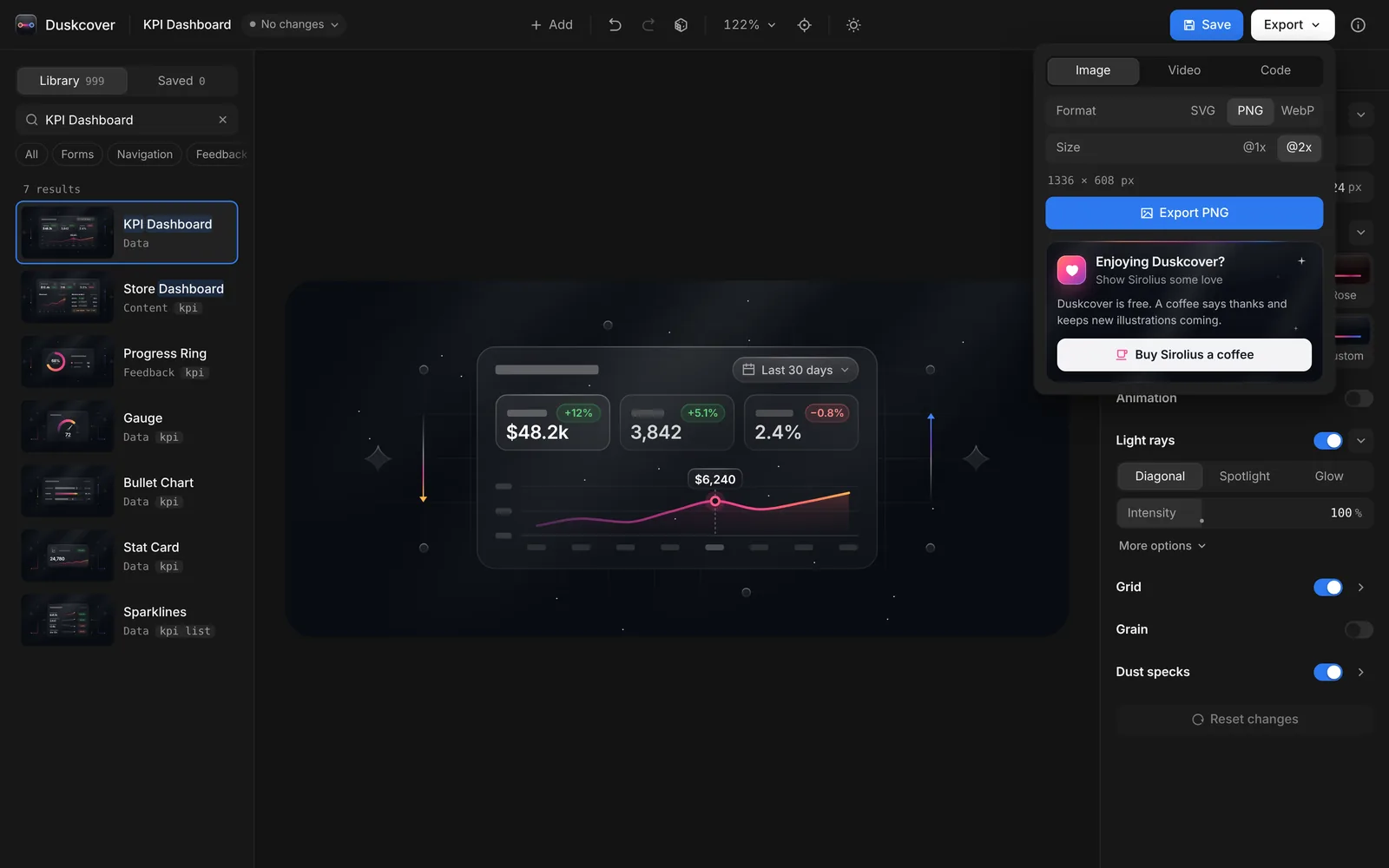
- PNG or WebP @2x gives you 1336 × 608, which is right for a blog cover or a changelog entry as it is.
- SVG is the file to use when you need other sizes. It has live text, embeds the Inter font and pastes into Figma with its shadows intact.
- Square in the Frame section of the Design panel gives a 1:1 version for Instagram or a Product Hunt thumbnail.
- Video exports a seamless loop (MP4 or WebM, animated WebP or SVG) for X and LinkedIn, where a moving image gets noticed.
Questions people ask
What's the best size for an Open Graph image? 1200 × 630 px. Keep it under about 5 MB (Meta allows up to 8) and use PNG or JPEG for the widest support.
Can the Open Graph image and the blog cover be the same file? They can, but they don't have to be. Many blogs use a 16:9 or 16:10 cover and a separate 1200 × 630 share image so nothing gets cropped.
What size is a Product Hunt gallery image? 1270 × 760 px, according to Product Hunt's help centre. Upload at least two.
Is a GIF better than a video for X? No. X turns GIFs into video anyway, and an MP4 looks better at a smaller file size.
Can I use Duskcover covers commercially? Yes, for your own product and for clients, with no credit required. See the licence.
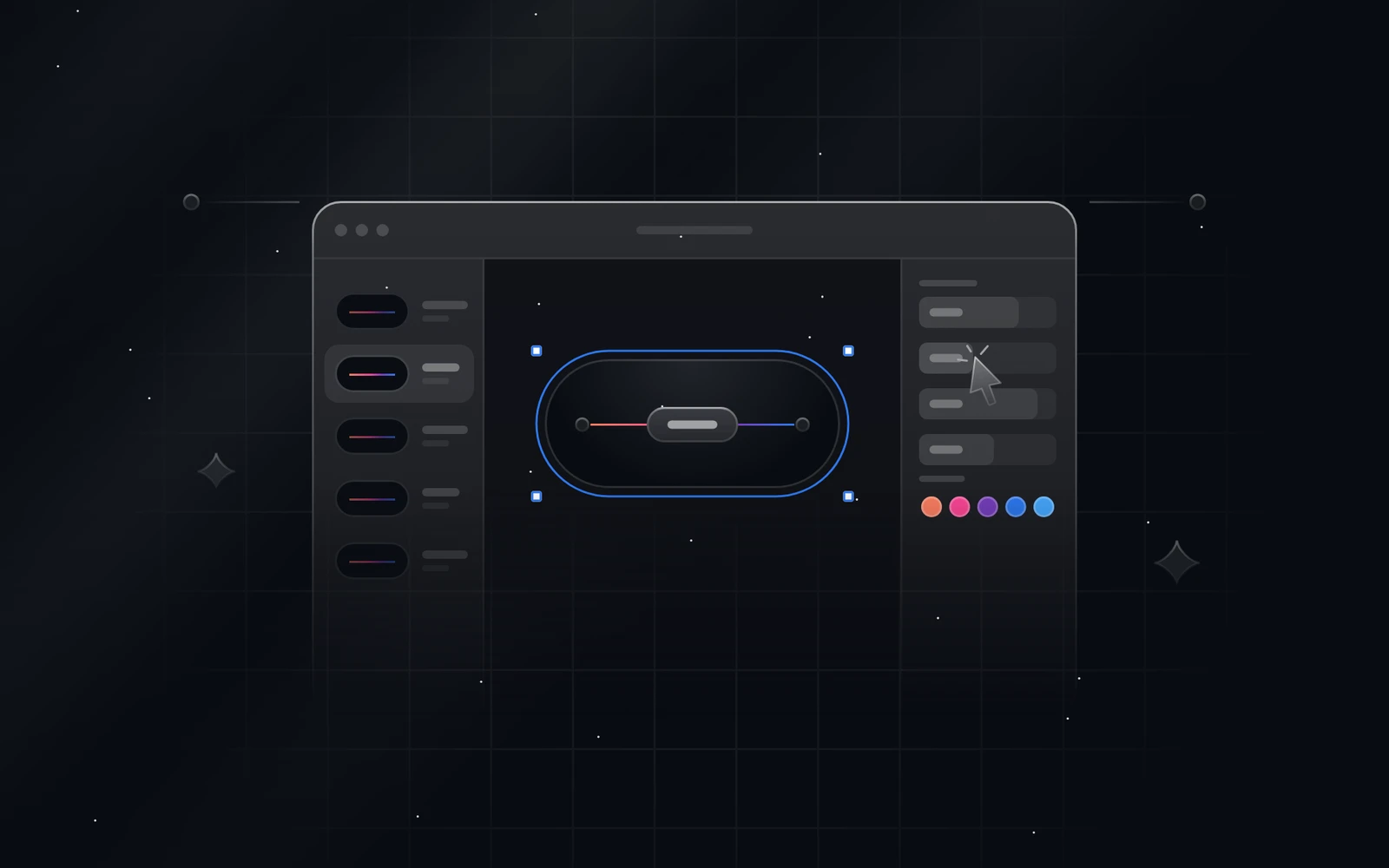 Try Duskcover, freeDuskcover is a free studio for glowing dark UI cover illustrations. Pick from 999, edit text, colours and light, then export SVG, PNG, video or React code.