Guides·
Changelog images: when to use a screenshot, and when to use a cover
A practical guide to images for changelogs and feature announcements: when a screenshot is right, when an abstract cover works better, sizes, and free dark covers you can edit.
Loris·6 min
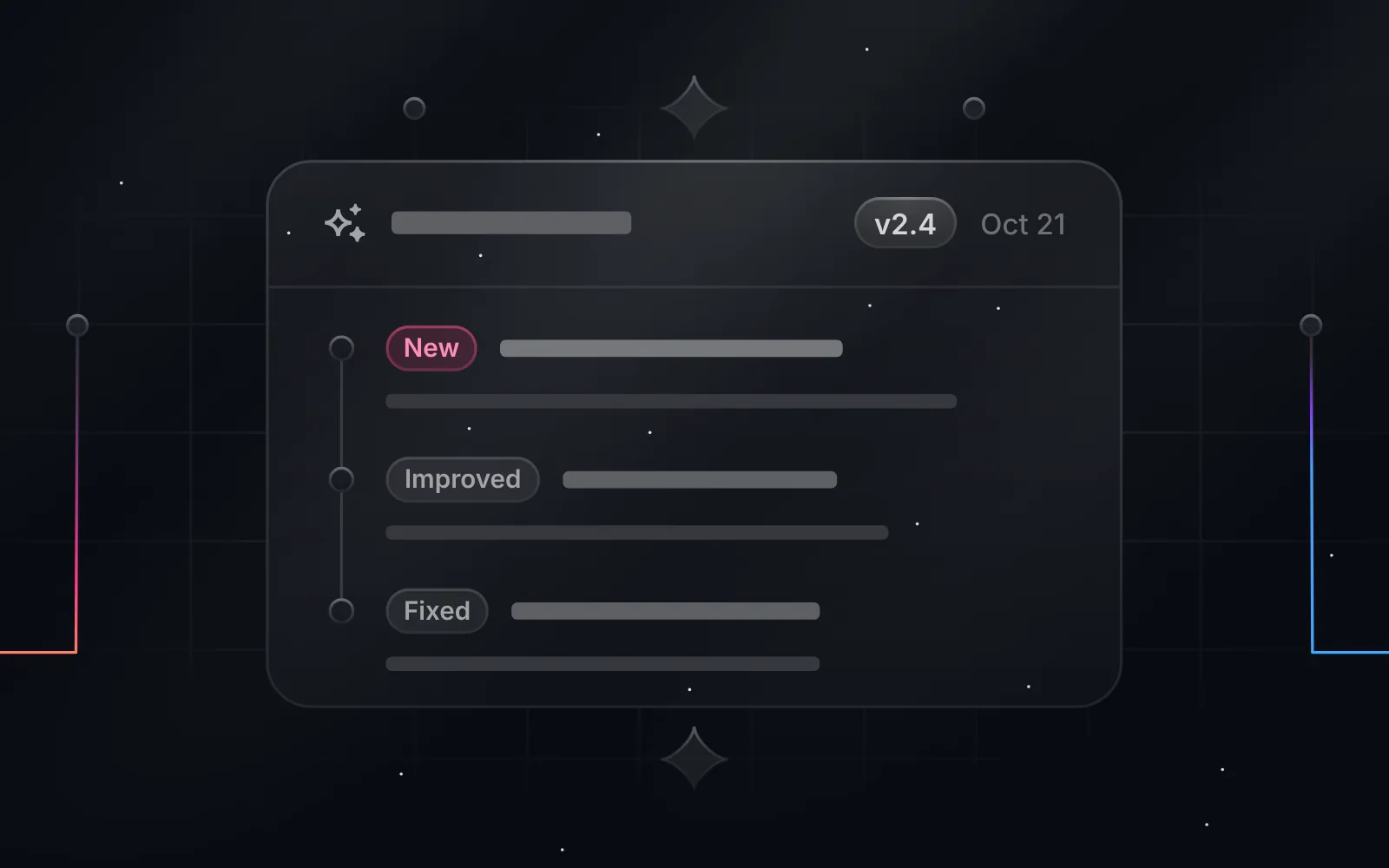
Short answer: if a release changes something people can see, show it with a screenshot or a short clip. If it can't be seen (an API, a security fix, a speed-up, an integration, a feature still in beta), use a clean abstract cover that names the change. Duskcover is a free browser studio with 999 dark, editable cover illustrations for exactly that second case. It exports SVG, PNG, WebP, video and React.
Most changelog advice says the same thing: show the outcome, and don't add a decorative picture just to fill the slot (Screenhance's changelog guide puts it well). We agree with that for interface changes. A screenshot of the new filter bar tells people more than any illustration can.
The trouble is that a lot of releases have nothing to screenshot. A rate-limit change, a new webhook, two-factor login, a 40% faster export. Teams either skip the image, which makes those entries look less important, or grab a stock photo that says nothing. This guide is about that gap.
Which releases need a screenshot, and which need a cover?
Use this as a rule of thumb:
| Release type | Best image | Why |
|---|---|---|
| New screen or redesigned UI | Screenshot or 5–10 s clip | People want to see where it lives |
| Small UI improvement | Cropped screenshot | Crop to the one thing that changed |
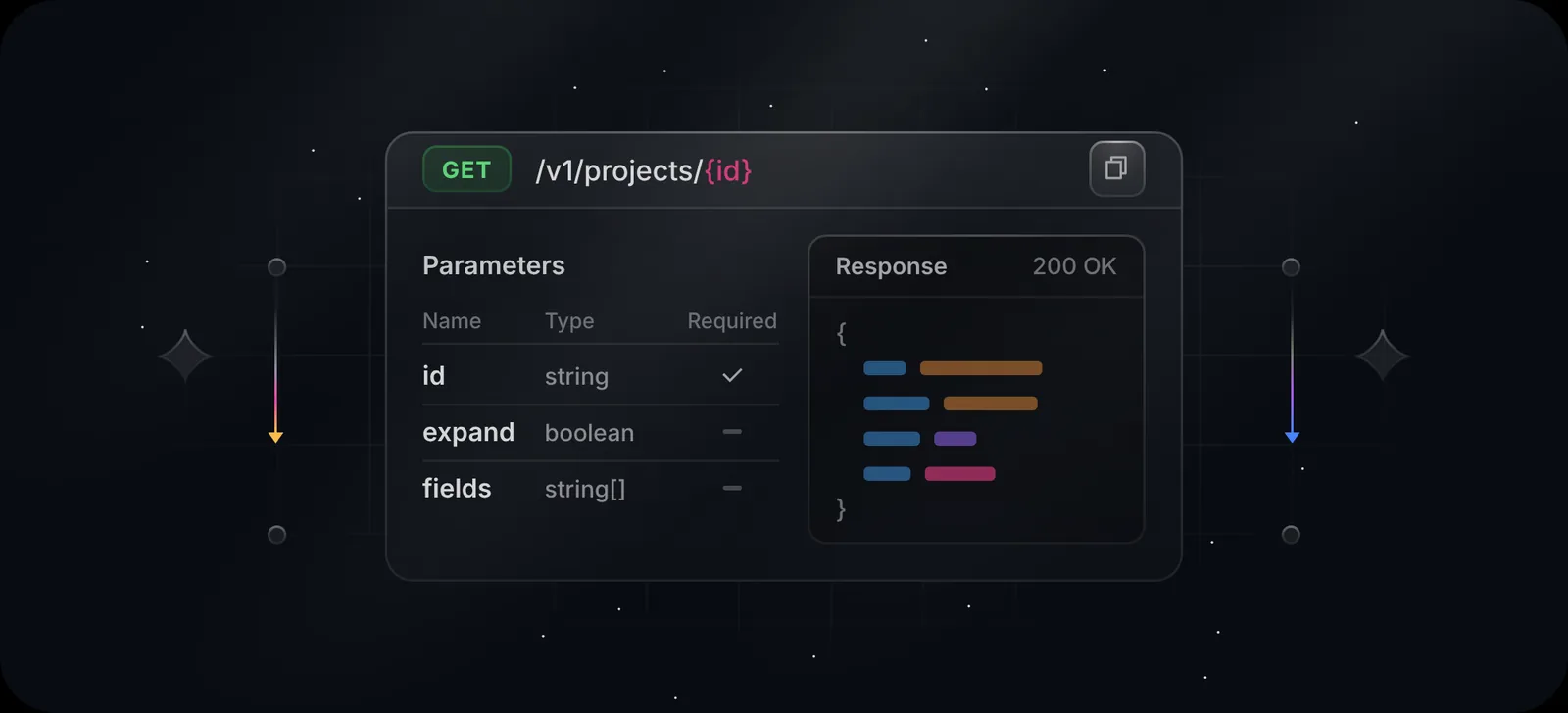
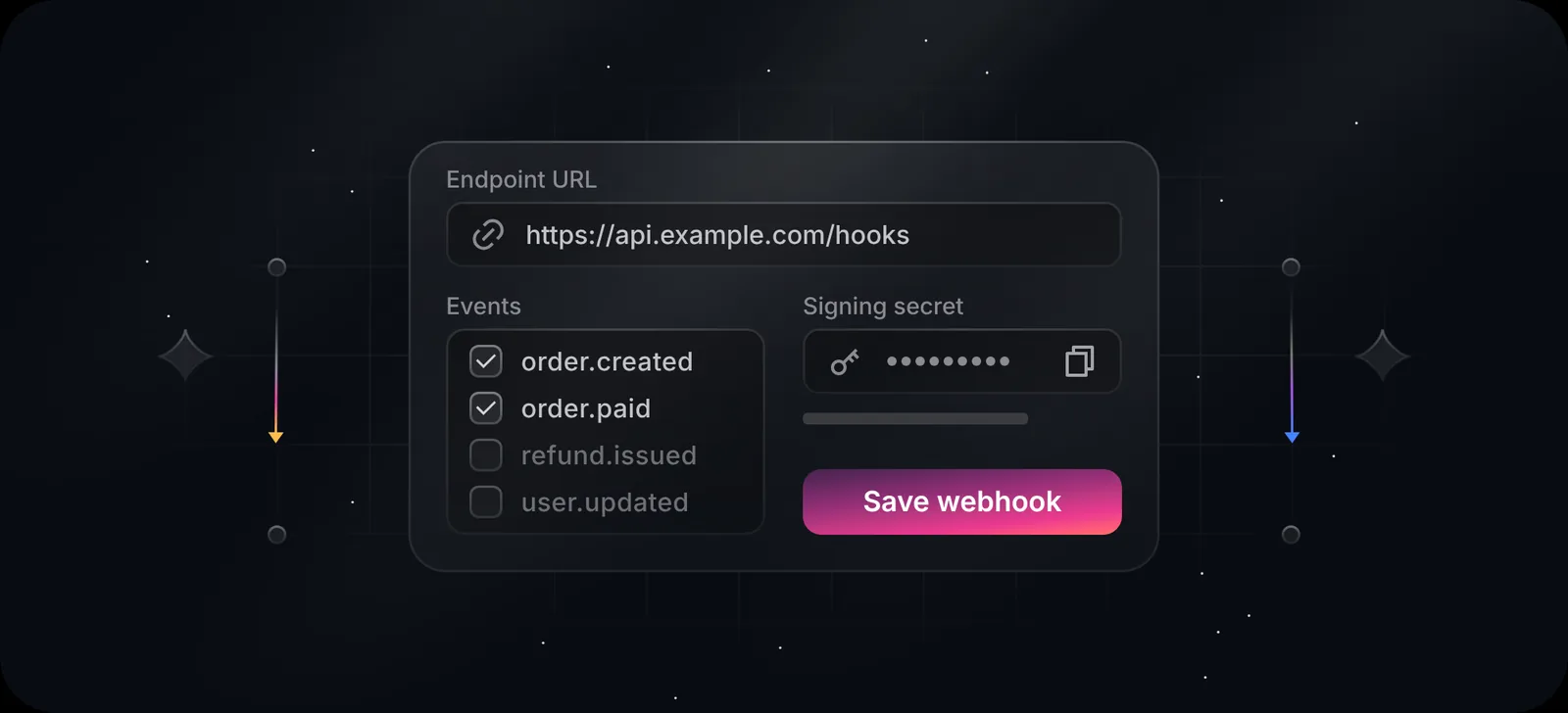
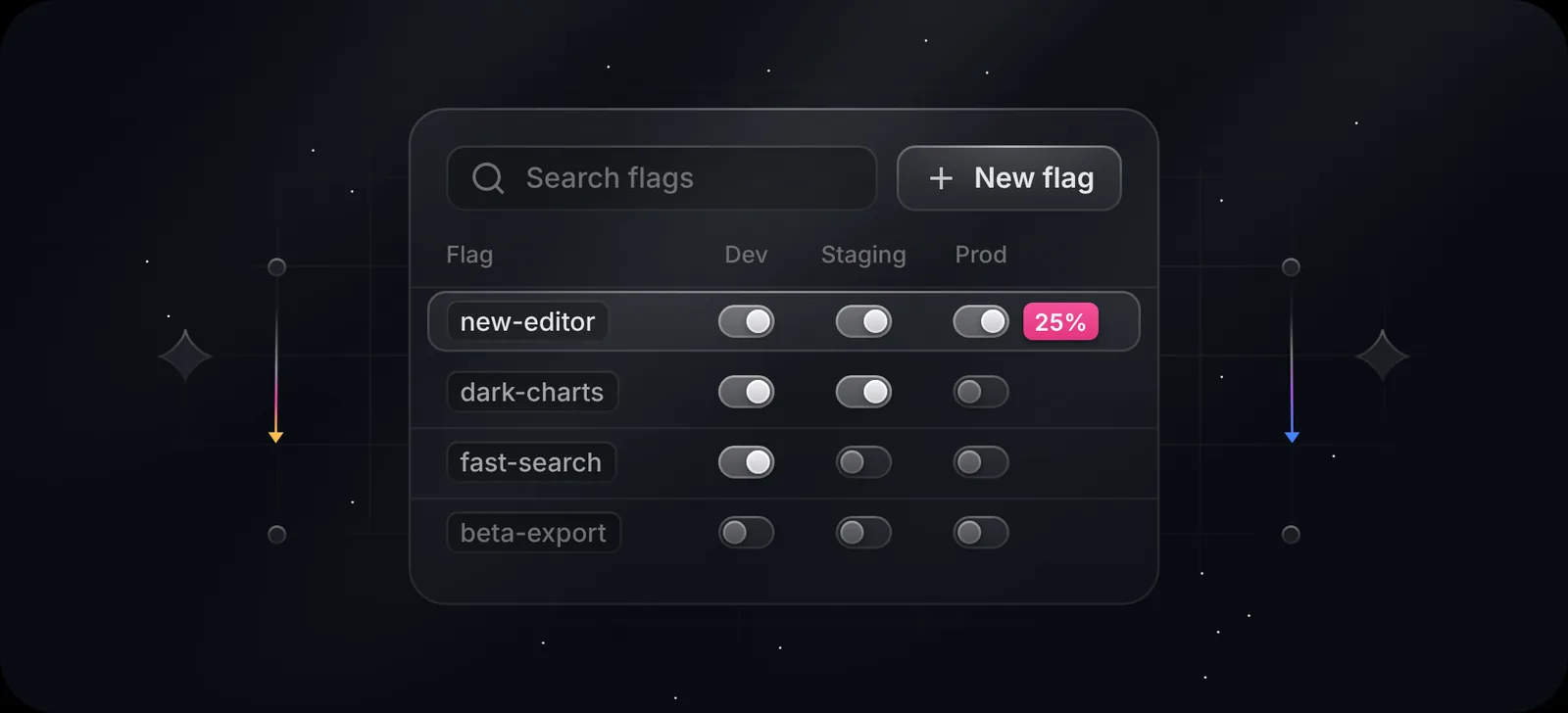
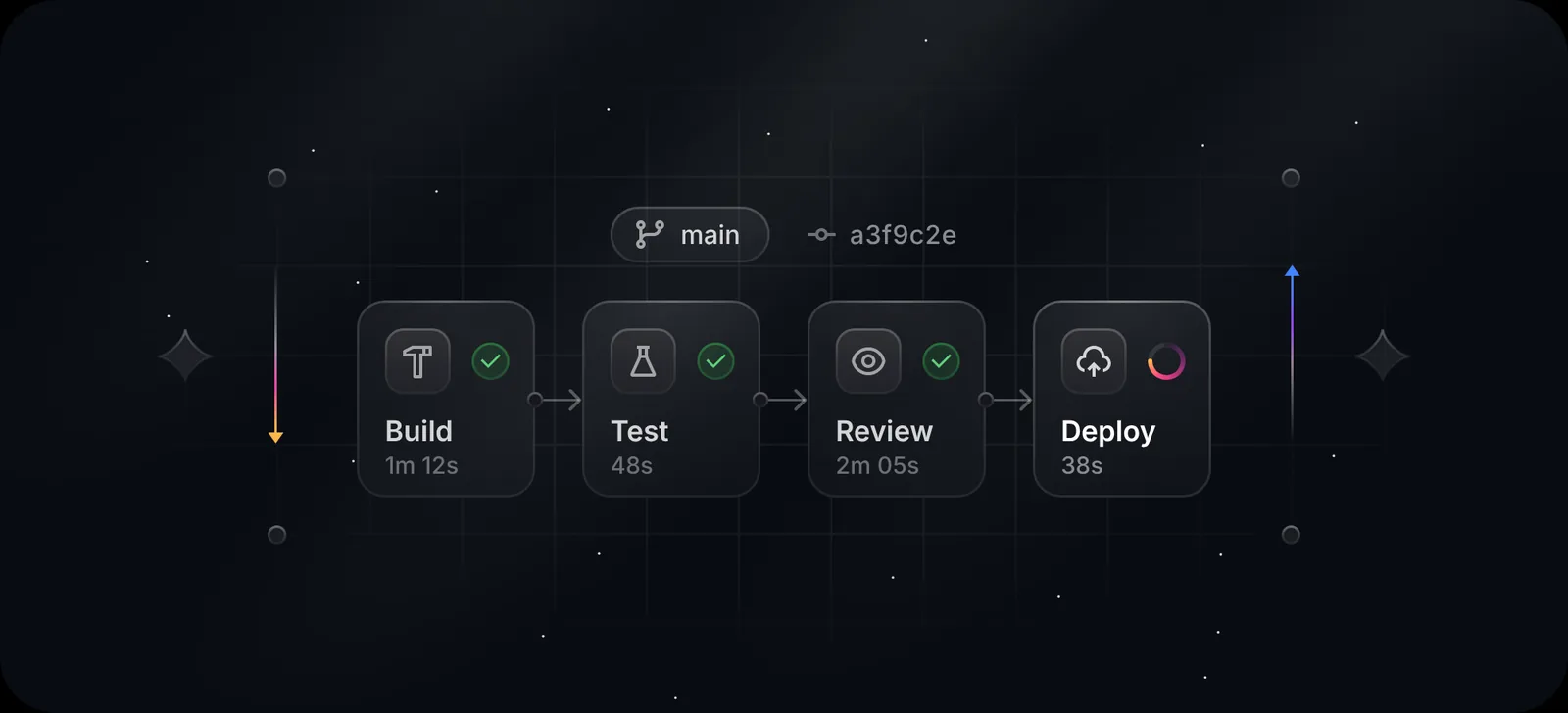
| API, webhooks, SDK | Abstract cover | There's no screen to show |
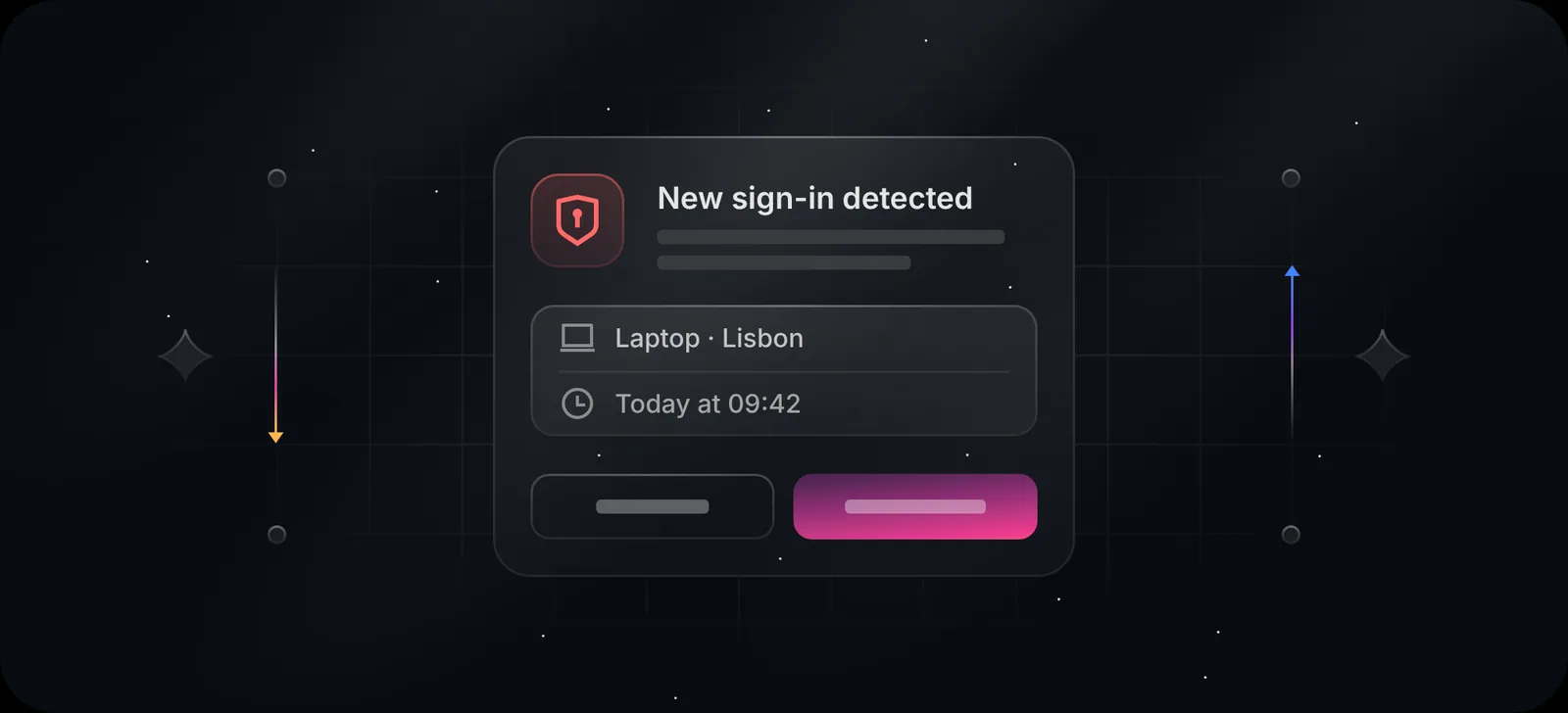
| Security and privacy | Abstract cover | Screenshots of settings pages look alarming out of context |
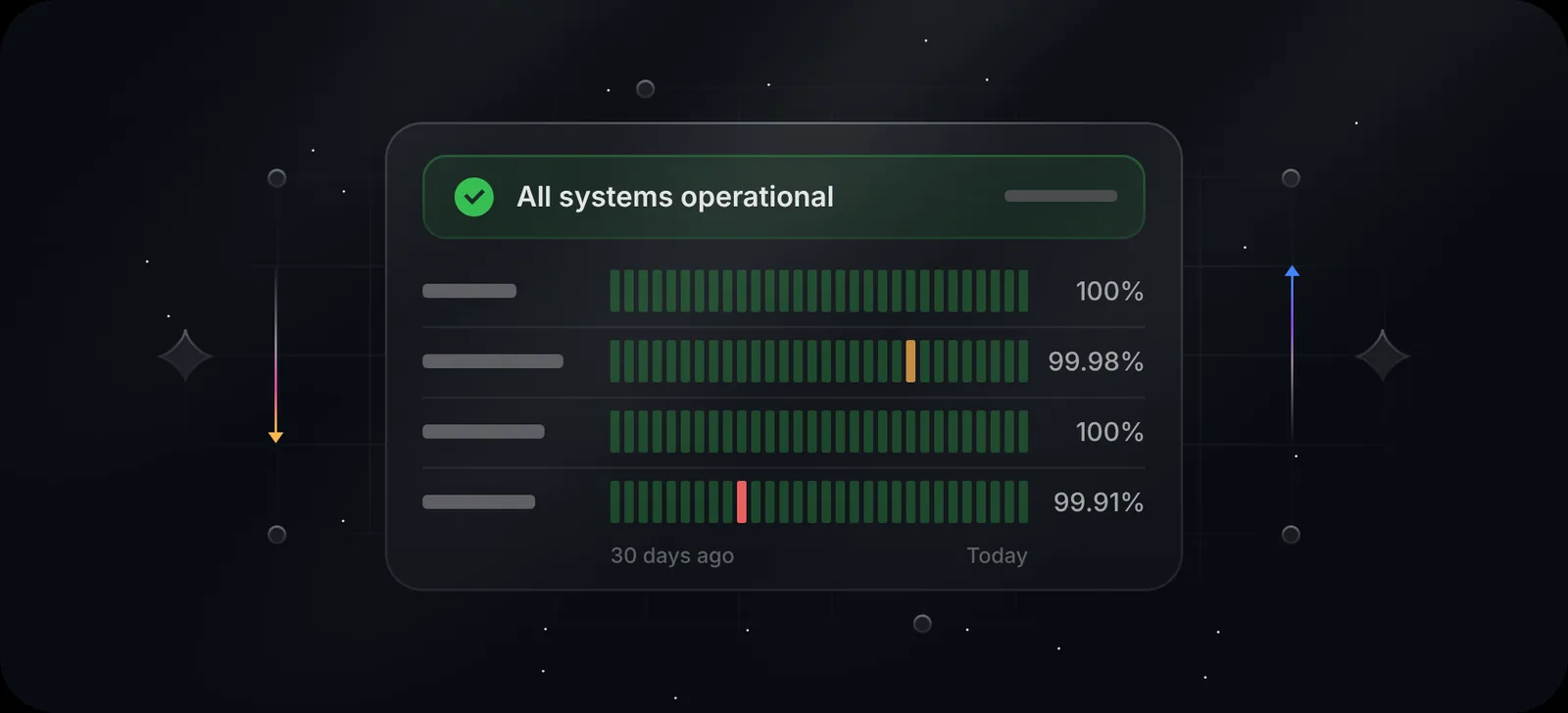
| Performance | Cover with the number | "2× faster" is the whole story |
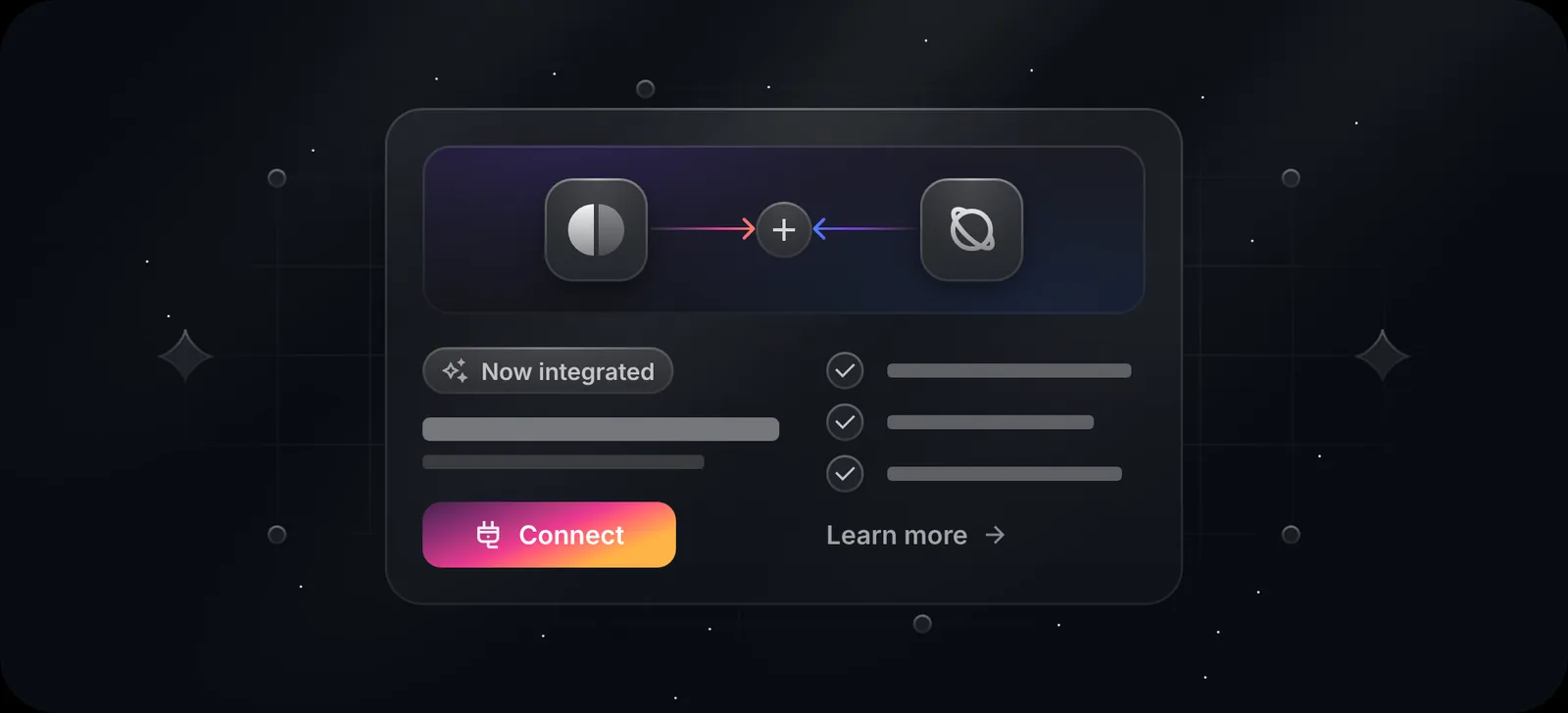
| Integration | Cover with both logos or a connector | The partnership is the news |
| Pricing and plans | Cover | Prices change; a screenshot dates fast |
| Beta or unreleased feature | Cover | The UI isn't final yet |
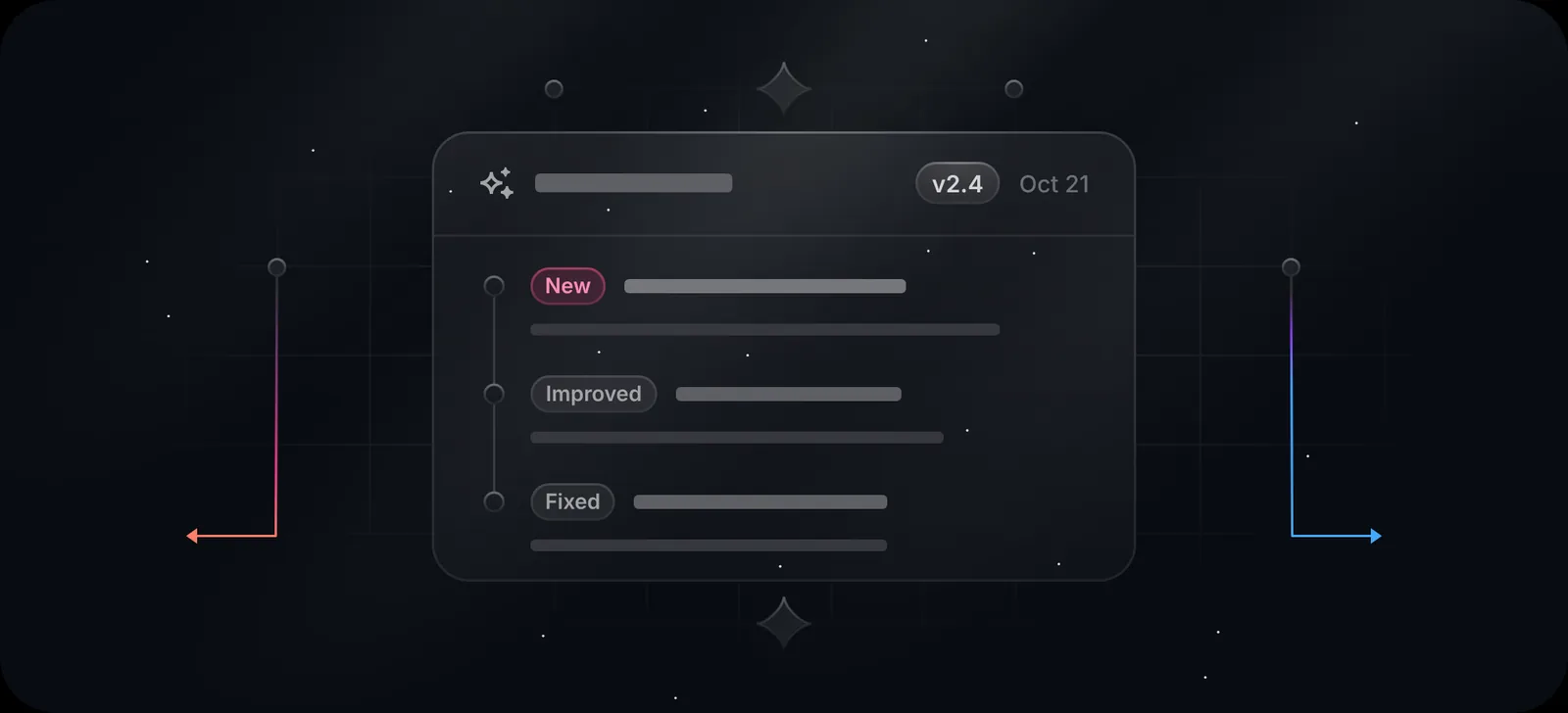
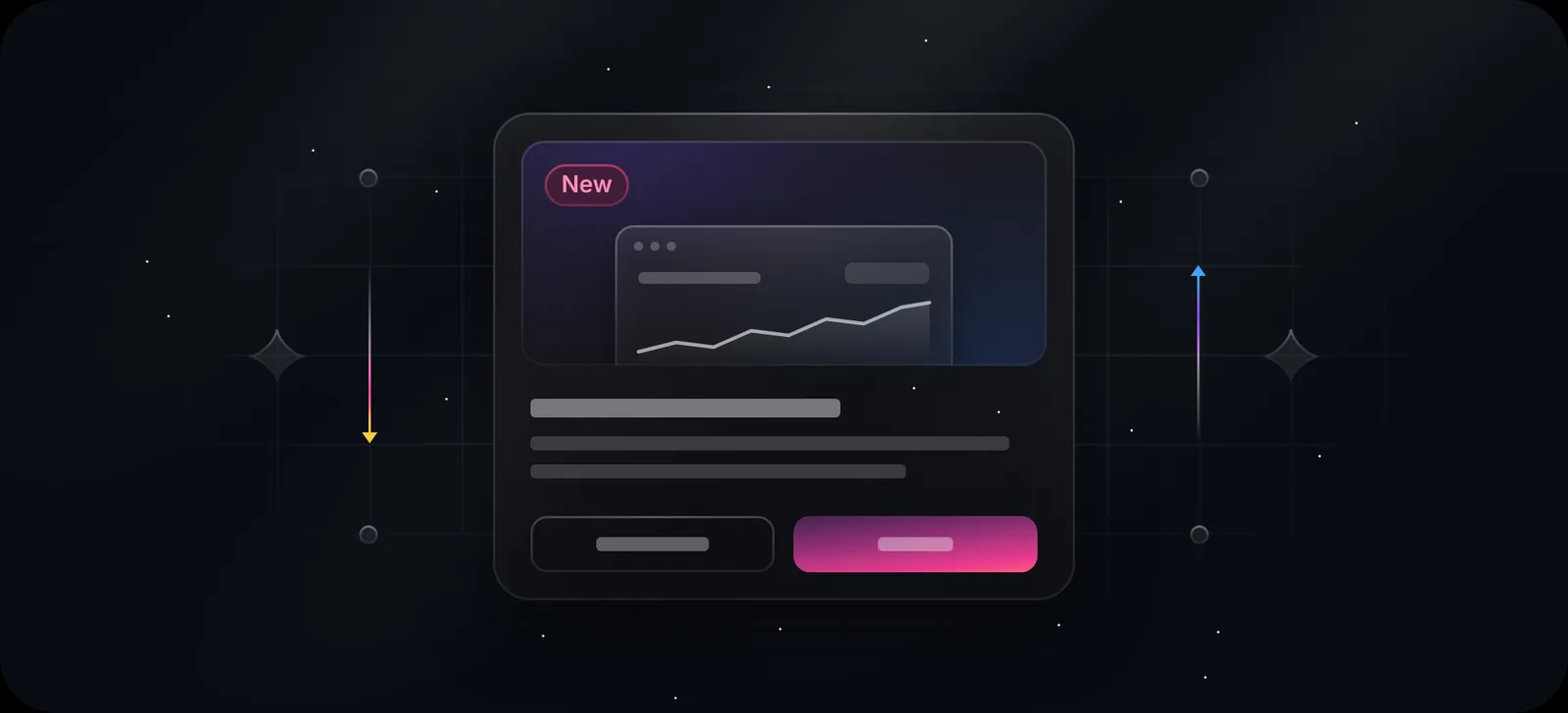
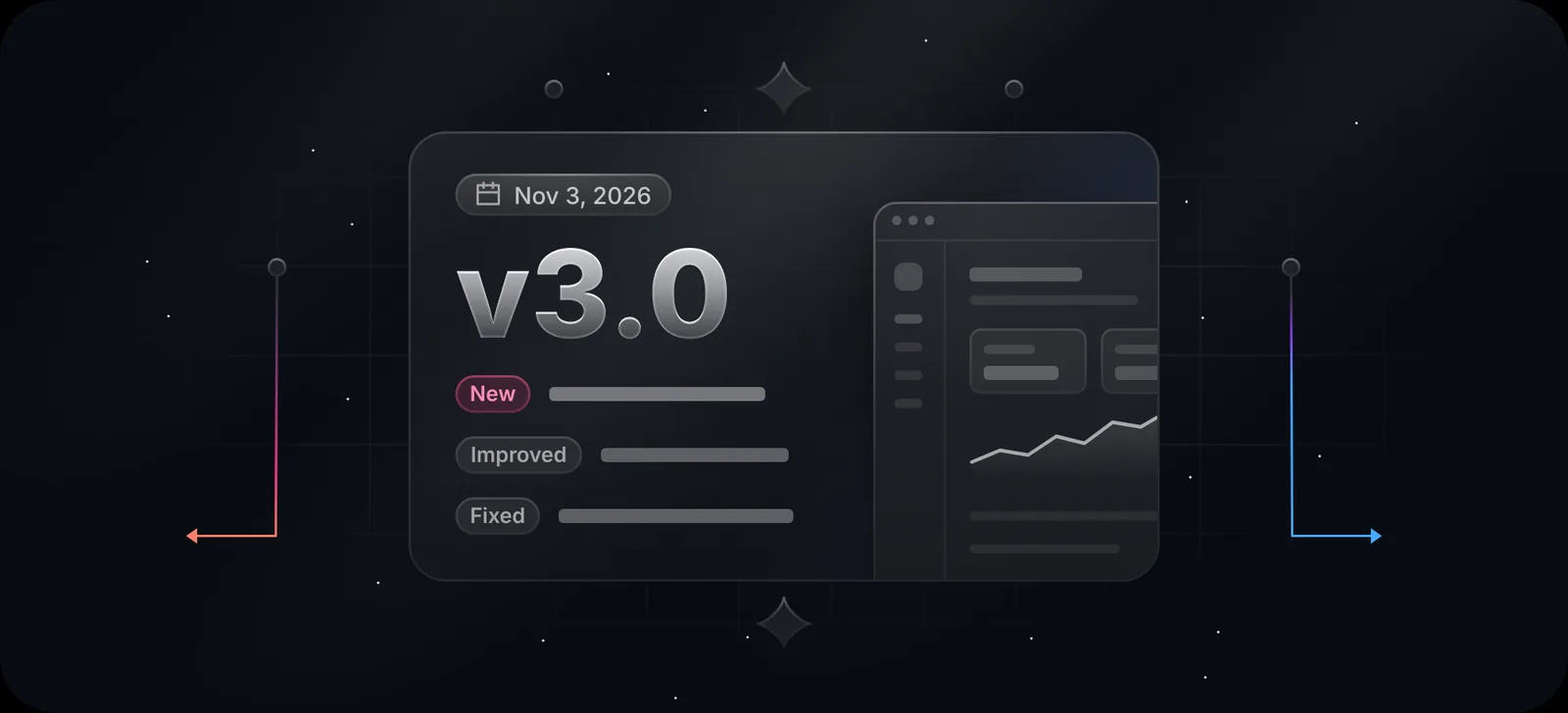
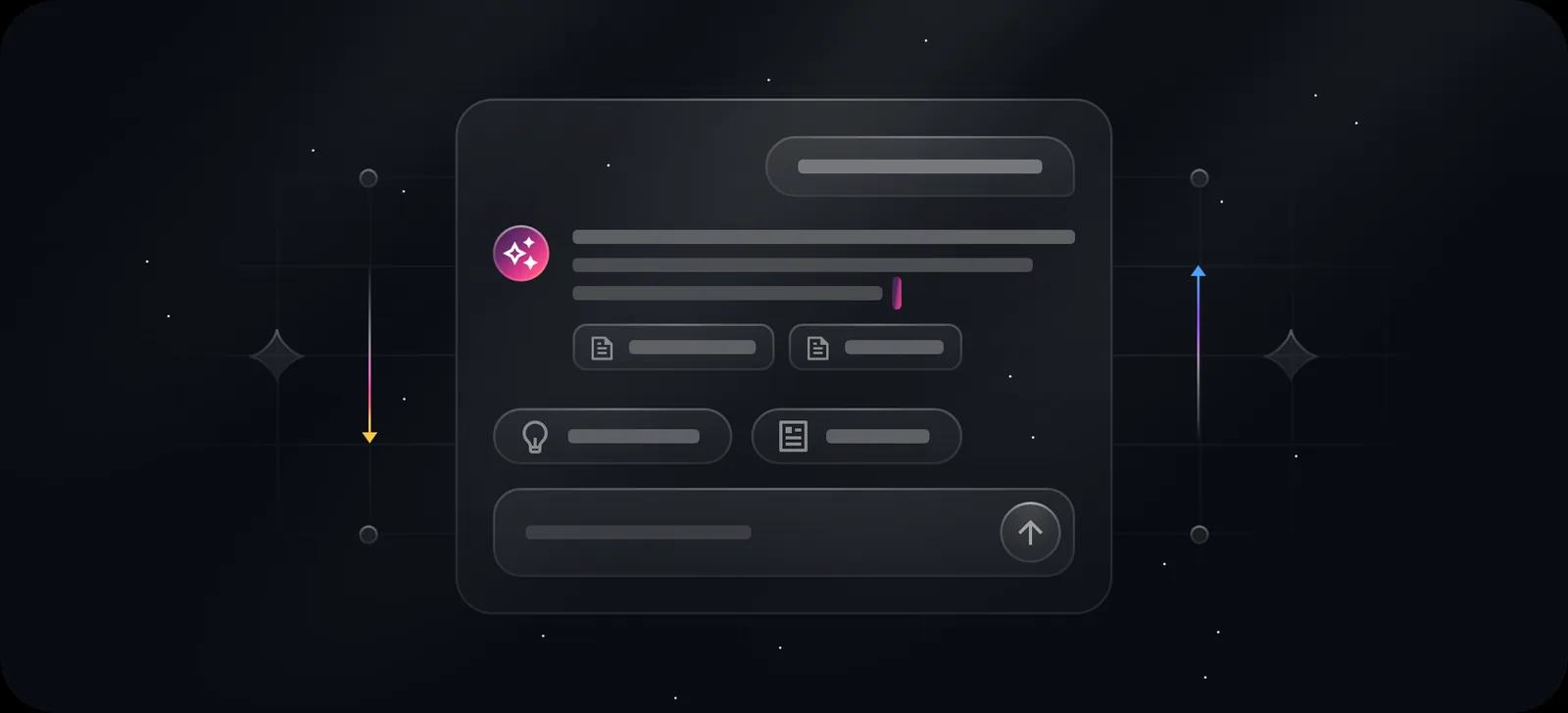
The covers in the gallery below are all from Duskcover's Library, unedited. Each one maps to a row in the table.
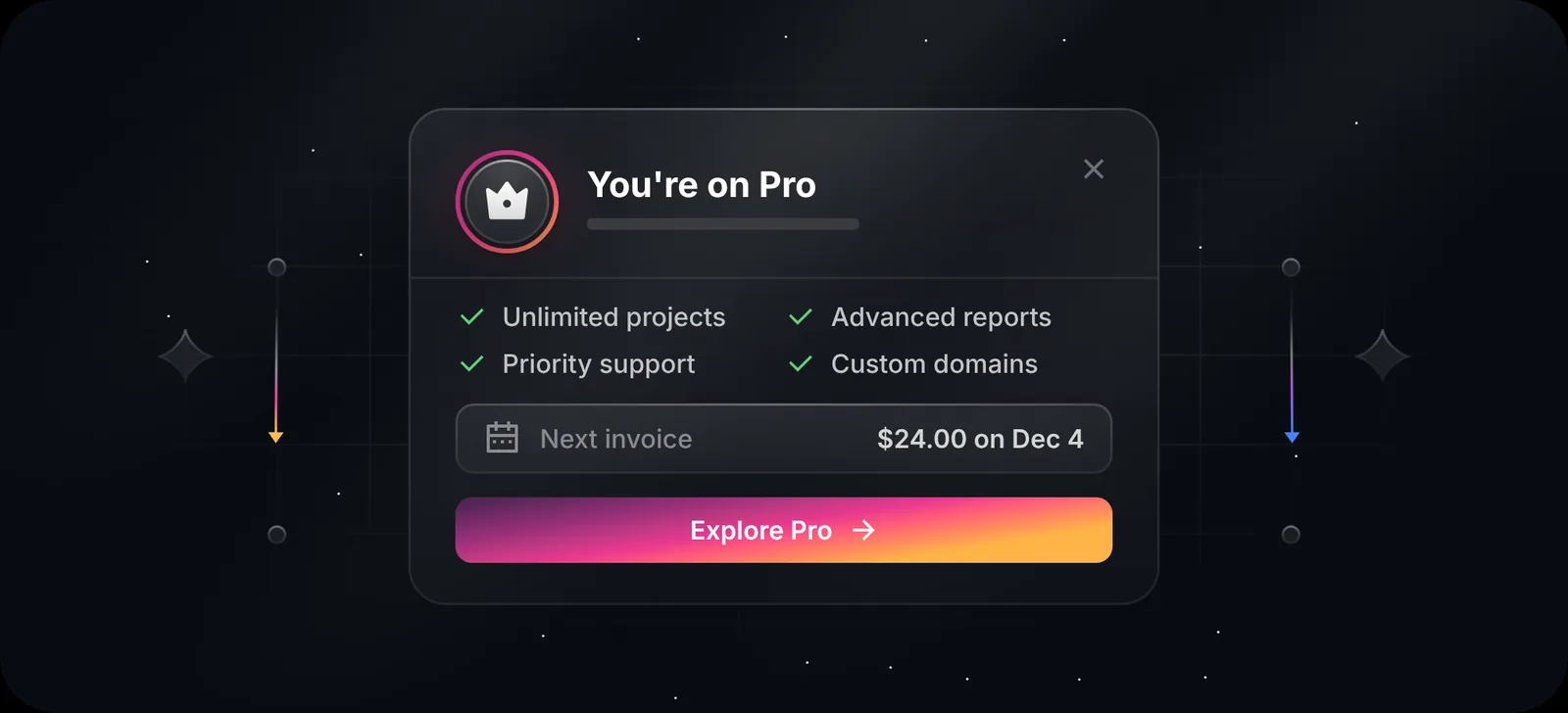
What makes a good changelog cover?
We built 999 of these, and the ones that work share a few traits:
- One idea per image. A cover for a webhook release shows a webhook form, not a collage of the whole product.
- Text you can change. The tag ("New", "Beta", "v2.4") is the part people read. In Duskcover every text is live, so you change it in the canvas instead of in Figma.
- The same frame every time. A changelog page is a feed. When every entry uses the same background, grid and light, it reads as one product. Duskcover keeps that frame fixed across the whole library, and the colour themes (Original, Azure, Violet, Rose, Amber, Emerald, Cyan or your own) recolour the accents without breaking it.
- Dark on purpose. Most SaaS changelogs sit inside a product that has a dark mode, and dark covers with a single light source stay readable at thumbnail size.
- No fake UI. The scenes use bars instead of fake text. Nobody tries to read lorem ipsum, and the image doesn't go out of date when the real copy changes.
What size should a changelog image be?
Duskcover's artwork is 668 × 304 px, and the @2x export is 1336 × 608 px. That width-to-height ratio of about 2.2:1 fits the slots changelogs usually use:
| Where | Size | Notes |
|---|---|---|
| Changelog page (in-app or web) | 1336 × 608 (@2x) | Displays sharp at the usual 600–700 px column |
| Email digest | 1200 × 600 | Shown at 600 px wide; keep text large |
| Link preview (Open Graph) | 1200 × 630 | Put the artwork on its own background; see our launch image sizes guide |
| X post | 1920 × 1080 (16:9) | 16:9 crops the sides a little |
For an email, check the cover at 600 px wide before sending. The tags should still be readable. If they aren't, raise the text size in the canvas; every text layer has its own size.
Should a changelog image move?
A short loop helps when the change is about motion: a new animation, a progress state, a live counter. For everything else a still image loads faster and reads at a glance.
When you do want motion, turn on Animation in Duskcover's Design panel and export from the Video tab: MP4 (or WebM in browsers that can't encode H.264), animated WebP or an animated SVG, at @1x or @2x, 30 fps, one seamless loop. We left GIF out on purpose: 256 colours band badly on dark gradients and the files get large.
How to make one in Duskcover
- Open Duskcover and search the Library, for example "webhook", "changelog" or "security".
- Click the text in the canvas to change the tag or the version number.
- Pick a colour theme in the Design panel so the accent matches your brand.
- Open Export: SVG (editable text, Figma-ready), PNG or WebP at @1x or @2x, a video, or Copy React to paste the illustration into a Next.js changelog as a component.
No account, and it's free. Your edits are saved in your browser.
Questions people ask
Should every changelog entry have an image? No. Small fixes can go without. Give an image to anything you would also post on social media, because that's where it gets reused.
Screenshot or illustration for a beta feature? Illustration. Beta UI changes, and a screenshot from week one will be wrong by week four.
Is Duskcover free? Yes. It runs in the browser with no account, and every export option is free. Everything you export is free for personal and commercial use, with no credit required (licence).
Do the covers work in light mode? Duskcover is dark by design. On a light changelog page, give the image a 12–16 px corner radius so it sits as a card. The Frame setting in the Design panel controls the corner radius.
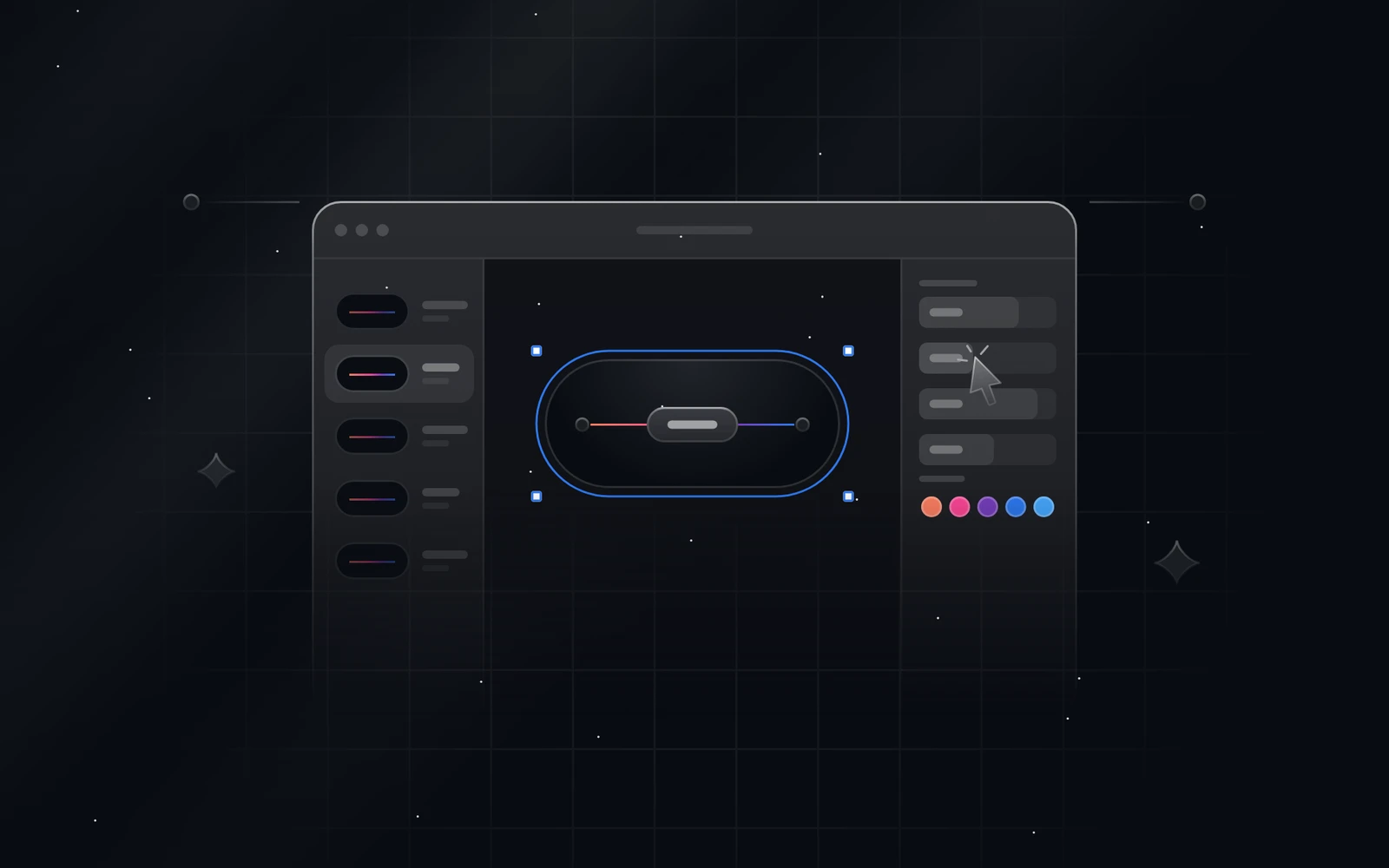 Try Duskcover, freeDuskcover is a free studio for glowing dark UI cover illustrations. Pick from 999, edit text, colours and light, then export SVG, PNG, video or React code.